
AWXのバージョンアップをしました (2.1.0 -> 4.0.0)
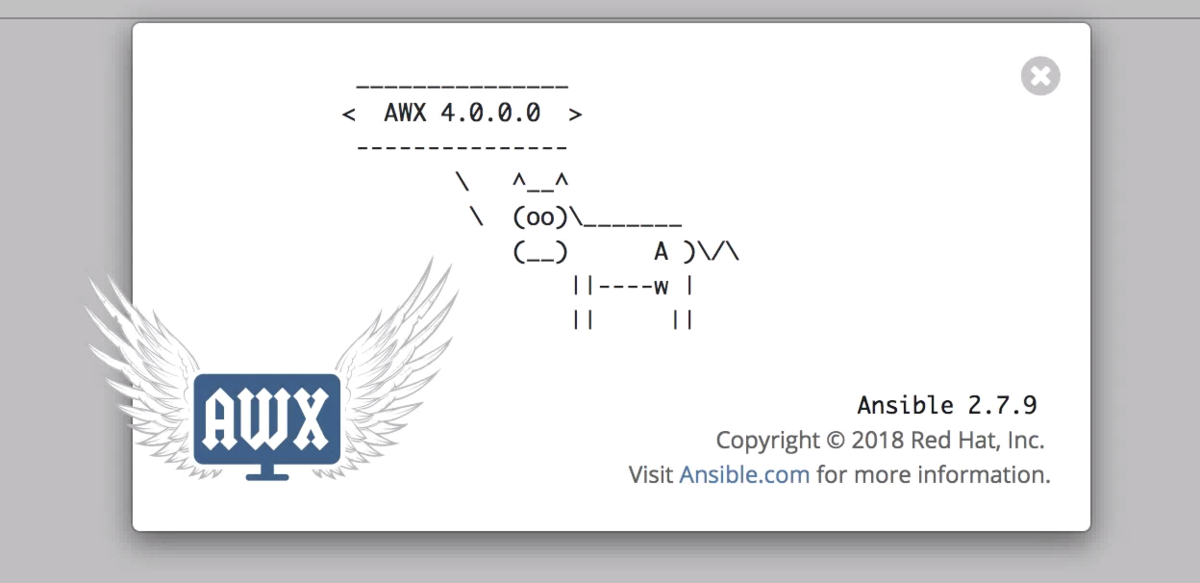
最新のAWXが4.0.0 に対し、使っていたAWXが2.1.0と古いため、バージョンアップを行いましたのでメモ。 環境はシングルノードでdockerを利用してAWXを動かしていますが、PostgreSQLだけはコンテナじゃなくてノード上の物を利用しています。
TL;DR
要はこれをやっただけ。バックアップもとりましたが、結局利用していないです。 結果として2.1.0を利用している場合、DBさえあればスムーズにアップグレードができると言っていいのかもしれません(個人の環境ですが)
- AWXとPostgreSQLのバックアップ1
tower-cli receive --all > assets.json
pg_dump -d awx | gzip >  pg_dump-awx$(date +%Y%m%d-%H%M%S).sql
- 最新版をgit pull2
cd <任意の場所>/awx
git pull
git checkout -b 4.0.0 refs/tags/4.0.0
vim  installer/inventory
-> portやpostgresなどの固有設定を反映
- 既存のAXWコンテナを停止
これはAWXに限定しない危険コマンドなので、手で一つずつ選択して止めることを個人的には推奨します。3 私の環境はAWX専用だったので手順通りに行いました。
docker rm -f $(docker ps -aq)
- 通常の手順に従いInstall
# Set the working directory to installer
cd installer

# Run the Ansible playbook
ansible-playbook -i inventory install.yml
最初にバージョンアップについて調べました
ざっと調べて以下の情報を得ました。AnsibleJPのSlackは本当に有意義ですね、最高です。
- バージョンアップ方法は一般的に、 GitHub - AWX - DATA_MIGRATION を参照するようだ
- その他にも awx-migrate というツールを使うことも可能4
- どちらにせよインプレースではなくて、別インスタンスとして新バージョンを構築し、データをマイグレーションするのがお作法らしい5
サーバ
暫定でシングルノードににdockerを入れて起動しています。
/usr/local/srcにawxを git clone しています。
/usr/local/src/awx/
Portは80を既存で使っているので、81にしています。 DBはコンテナではなくホスト側ののPostgreSQLを利用しているので、以下の変更を加えてあります。
[root@morihaya-awx awx]# git diff installer/inventory
diff --git a/installer/inventory b/installer/inventory
index 847ba60..829c68e 100644
--- a/installer/inventory
+++ b/installer/inventory
@@ -36,7 +36,7 @@ dockerhub_base=ansible
 awx_task_hostname=awx
 awx_web_hostname=awxweb
 postgres_data_dir=/tmp/pgdocker
-host_port=80
+host_port=81  <-80は別のが使っているので

 # Docker Compose Install
 # use_docker_compose=false
@@ -62,7 +62,7 @@ docker_compose_dir=/var/lib/awx

 # Set pg_hostname if you have an external postgres server, otherwise
 # a new postgres service will be created
-# pg_hostname=postgresql
+pg_hostname=192.168.1.25 <-自前サーバのアドレス
 pg_username=awx
 pg_password=awxpass
 pg_database=awx
[root@morihaya-awx awx]#
手順
pipでtower-cliを導入(初回のみでいいはず)
バックアップを取るためにtower-cliを入れました6
root@morihaya-awx ~]# pip3.6 install --upgrade ansible-tower-cli
Collecting ansible-tower-cli
  Downloading https://files.pythonhosted.org/packages/59/69/1094b250355b8ff3f0b0257c4d3527681813ce71ddc94ea37452bb9563cd/ansible-tower-cli-3.3.4.tar.gz (201kB)
    100% |████████████████████████████████| 204kB 4.3MB/s
Collecting click>=2.1 (from ansible-tower-cli)
  Downloading https://files.pythonhosted.org/packages/fa/37/45185cb5abbc30d7257104c434fe0b07e5a195a6847506c074527aa599ec/Click-7.0-py2.py3-none-any.whl (81kB)
...
tower-cliをセットアップ
[root@morihaya-awx ~]# tower-cli config host http://localhost:81
Configuration updated successfully.
[root@morihaya-awx ~]# tower-cli config username admin
Configuration updated successfully.
[root@morihaya-awx ~]# tower-cli config password <いつもの>
Configuration updated successfully.
[root@morihaya-awx ~]#
sslデフォで怒られたので以下も7
[root@morihaya-awx ~]# tower-cli config verify_ssl False
Configuration updated successfully.
認証が通ればコマンドが使えるようになります。
root@morihaya-awx ~]# tower-cli job list
=== ============ =========================== ========== =======
id  job_template           created             status   elapsed
=== ============ =========================== ========== =======
152            8 2019-03-08T10:30:26.525586Z successful 8.592
154            8 2019-03-08T10:31:43.861547Z successful 8.3
157            8 2019-03-08T10:34:52.908101Z successful 7.088
159            8 2019-03-08T10:35:43.064671Z successful 12.624
161            8 2019-03-08T10:36:08.166623Z successful 11.654
164            8 2019-03-08T10:38:38.675969Z successful 17.196
166            8 2019-03-08T10:39:19.571107Z successful 8.659
168            8 2019-03-08T10:39:47.273167Z successful 37.796
AWXの情報をバックアップ(結局使わなかった)
以下を実行する
tower-cli receive --all > assets.json
assets.jsonは以下のサイズだった。大したことはないですね。 ただし、中身を見るとパスワードや秘密鍵などの秘密情報は出ていないように見えました。
[root@morihaya-awx ~]# ll -h assets.json
-rw-r--r-- 1 root root 12K  6月  8 14:06 assets.json
[root@morihaya-awx ~]#
PostgreSQLのバックアップ(結局使わなかった)
ホストサーバで以下を実施します。コンテナ外部のPostgresを使っているので。
su - postgres
pg_dump -d awx | gzip >  pg_dump-awx$(date +%Y%m%d-%H%M%S).sql
こちらもサイズ的には小さいですね。
-bash-4.2$ ll -h pg_dump*
-rw-r--r-- 1 postgres postgres 277K  6月  8 15:00 pg_dump-awx20190608-150030.sql
-bash-4.2$
アップグレード
まずはリポジトリを最新化します。
cd /usr/local/src/awx
git status

#inventoryをバックアップ
cp -p installer/inventory /tmp/
git co installer/inventory

git pull
vim  installer/inventory
-> portやpostgresなどの固有設定を反映
安全のため最新バージョンのタグのCommitを使う8
git co -b 4.0.0 refs/tags/4.0.0
その後は手順にしたがって
#これ実行するとAWX以外のコンテナも止まるから注意
#docker rm -f $(docker ps -aq)

#こっちの方が安心
docker rm -f  <awxのコンテナ>
make clean-ui

git pull


# Set the working directory to installer
cd installer

# Run the Ansible playbook
ansible-playbook -i inventory install.yml
すると以下のような画面がしばらく表示され完了します。
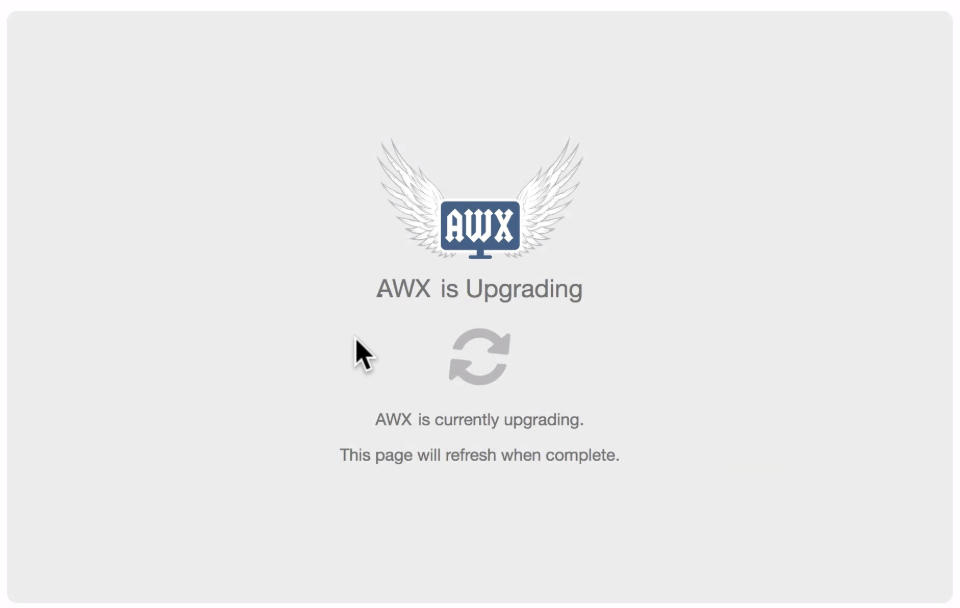 ログを見たい場合はdockerコマンドを実行します。
docker logs -f awx_task
こうして無事に4.0.0になりました。よかったよかった。
ハマったこと
何も考えずにgit cloneしただけのブランチで作業を進めたらエラーで起動してこなかった
git clone直後は devel というブランチで、そのまま作業を進めてもエラーになってしまった(docker logs -f でぐるぐるし続ける…)
気を取り直して git co -b 4.0.0 refs/tags/4.0.0 とタグ付きのコミットでリトライしたところ、無事に動作しました。
dockerのインターナルIPが変わったらしくてPostgreSQLのpg_hbaに引っかかっていたので多めに許可。
ログイン画面が起動してこないため、 docker logs -f awx_task を見た所 “pg_hba.conf” に許可されていないというメッセージがで続けていた。
PostgreSQLのNW許可が、Dockerが利用するインターナルなセグメントの許可が甘かったので、以下のようにざっくり開けちゃいました。
su - postgres
cd /var/lib/pgsql/10/data
cp -p pg_hba.conf pg_hba.conf.20190608
vi pg_hba.conf

-bash-4.2$ diff pg_hba.conf.20190608 pg_hba.conf
99c99
< host    all             all             172.17.0.0/16           trust
---
> host    all             all             172.0.0.0/8            trust
-bash-4.2$

pg_ctl reload
で対応しました。(個人検証環境なのでまあ、ガバガバでもいいかな)